Most of us read in fragments: a few pages on the phone at lunch, a chapter on the tablet in the evening, a bit more on a laptop at the weekend. When syncing works, it feels like magic. When it doesn't, you spend five minutes hunting for your page. This guide explains how syncing works and how to make it reliable.
How ebook syncing works
When you read, your app keeps track of your position in the book, along with any highlights, notes and bookmarks you make. If you're signed in, it saves that information to your account online. When you open the same book on another device signed in to the same account, that app asks your account for the latest position and loads it. That's all syncing is: a small note of where you are, stored in the account and shared with each device.
Because it depends on your account, two things matter above all: being signed in to the same account everywhere, and each device getting a chance to talk to the account before and after you read.
What usually syncs
| Item | Syncs in most modern apps? |
|---|---|
| Reading position | Yes |
| Highlights | Usually |
| Notes | Usually |
| Bookmarks | Usually |
| Reading settings (theme, font, size) | Often kept per device |
| Books from other stores | No; each store syncs its own books |
Keeping reading settings per device is often a good thing: you might want larger text on a phone than on a laptop, and a dark theme in bed but a light one at your desk.
Setting up smooth syncing
- Use one account.Check you're signed in with the same email on every device.
- Open the book with a connection when you start reading on a device, so it can fetch your latest position.
- Give it a moment before closing, so your new position is saved.
- Keep the app up to date on each device.
- Set your preferred theme and text size on each device once.
Common sync problems, and fixes
| Problem | Likely cause | Fix |
|---|---|---|
| Position didn't update | A device hadn't connected since you last read | Open the book with a connection on both devices |
| Different books in each library | Signed in to different accounts | Sign out and back in with the same email |
| Highlights missing on one device | The app hadn't finished saving | Reopen the book with a connection and wait a moment |
| Jumped back to an earlier page | An older position was saved later | Go to the page you want and read on; the app saves the new position |
| A book won't appear on a new device | The library hasn't refreshed | Refresh your library or sign out and in again |
Reading across devices: a realistic day
Picture a typical day. On the bus to work you read a few pages on your phone. At lunch you open the same book on your laptop, and it offers to jump to the page you reached on the bus. In the evening you settle down with a tablet, and the book opens at the end of your lunchtime chapter, with the passage you highlighted on the bus already marked. Before bed, you read the last few pages on your phone again. That seamless handover is what good syncing gives you, and it takes nothing more than signing in to the same account on each device.
Highlights and notes across devices
Highlights and notes are often the most valuable thing to sync. A quote you marked on your phone should be there when you sit down at your laptop to write about it. In most apps, highlights and notes are saved to your account and appear on every device. Some apps also let you view them all in one list, which makes reviewing a non-fiction book or preparing a talk much easier. See highlights and notes for making the most of them.
Choosing apps that sync well
If you read on several devices, choose a store whose apps run on all of them. Some reading apps work only on one maker's phones and computers, which is limiting if your devices are mixed. Browser-based readers work on almost anything with a modern browser, including work laptops where you can't install apps. See the best ebook reader apps for a comparison.
Different stores, different apps
Syncing happens within a store's own apps: books from one store sync across your devices in that store's app, but not into another store's app. If you buy from two or three stores, you'll have two or three reading apps, each keeping its own books in sync. That's normal, and many readers find it easier than trying to force everything into one place.
Reading on a work or shared computer
Browser-based readers are especially handy on computers you don't own. Sign in, read, and sign out when you're done, so the next person doesn't see your library. Your position is saved to your account, so you'll pick up at the same point on your own phone later. See reading ebooks on a laptop.
Privacy and syncing
Syncing means your reading position, highlights and notes are stored in your account so they can be shared with your devices. That's what makes it work. Reputable stores keep this information private to you. If you share a device, use separate accounts or sign out when you've finished, so other people don't see your books or notes.
Syncing for families
Families sharing a tablet should each use their own account, so that each person's place and highlights stay separate. Children in particular benefit from having their own sign-in; it keeps their library simple and their progress their own. If a household shares one account, bookmarks and positions can get mixed up when two people read the same book.
Moving to a new phone or tablet
A new device is where good syncing really pays off. Because your library, position, highlights and notes live in your account rather than on the old phone, there is nothing to copy across. Install the store app or open the web reader on the new device, sign in with the same email, and your books appear. Open the one you were reading and it should jump to your last saved page.
Before you wipe or hand on an old device, open the book you are reading one last time with a connection, so its latest position is saved to your account. Then sign out. That small habit means nothing is lost and the next owner sees none of your books or notes.
Reading more than one book at a time
Plenty of readers keep a novel on the go alongside a non-fiction book, or a slow devotional beside a fast thriller. Syncing handles this well: each book keeps its own position, so you can read the novel on your phone and the non-fiction title on your laptop without either losing its place. Most reading apps show your recent books first, so switching between them takes a tap rather than a search.
If you often juggle several books, it helps to tidy your library now and then. Finished books can be marked as read or moved out of the way, so the ones in progress stay easy to find on every device.
A quick routine that keeps everything in step
You do not need to think about syncing most of the time, but a simple routine removes almost every problem. When you pick up a device, open the book and give it a second to load your latest page. When you put it down, let the page settle before you close the app or lock the screen. Once a month, check that each device is still signed in to the same account and that the app is up to date. That is all it takes for your reading to feel continuous, whichever screen happens to be closest.
Syncing in Oasis Reader
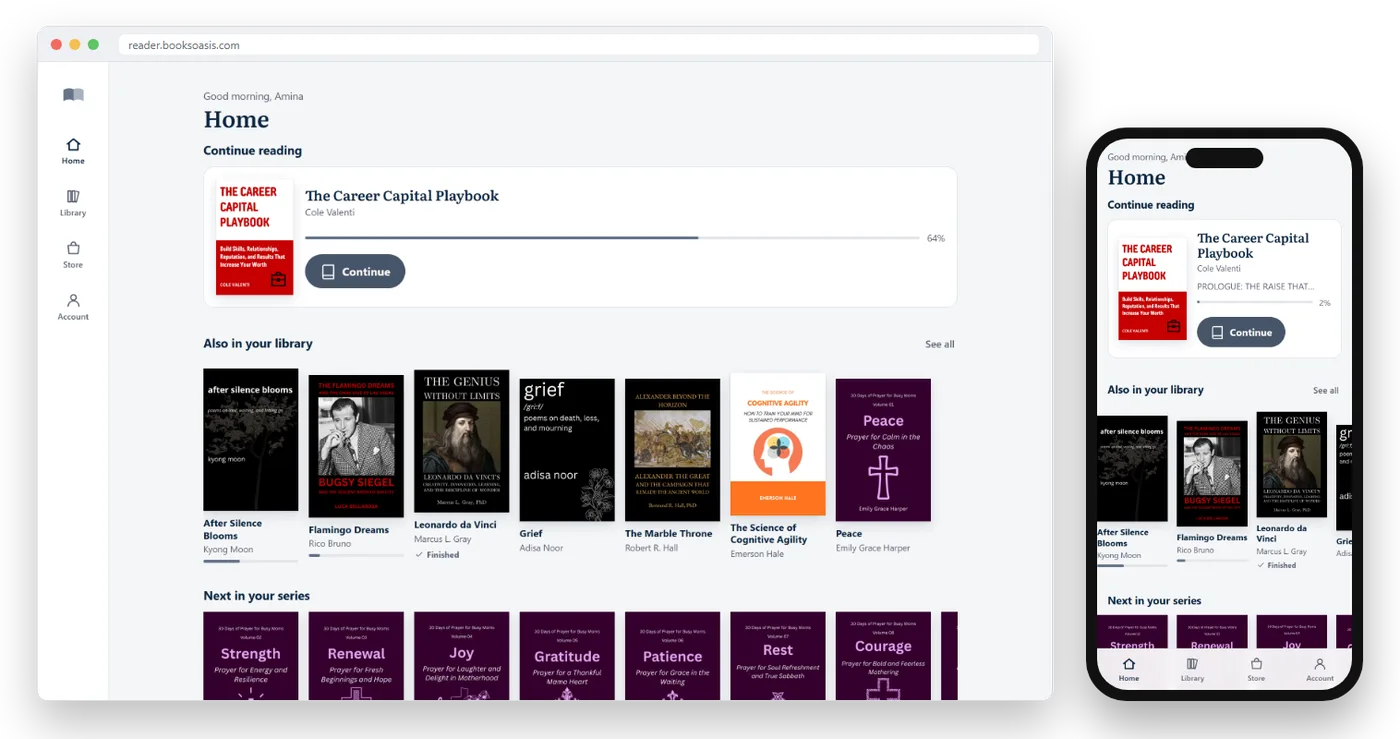
BooksOasis ebooks open in Oasis Reader, which runs in any modern browser on phones, tablets and computers, with nothing to install. Sign in with the same BooksOasis account on each device and your reading stays in step.
- Your place follows you across every device you sign in to.
- Highlights and notes are saved to your account and appear everywhere.
- The book you are reading sits at the top when you open the reader, so you can carry on in one tap.
- Reading settings stay per device, so each screen can be set up the way you like.
- Add to home screen on a phone or tablet, so it opens like an app.
What BooksOasis does not do
- It doesn't sync with Kindle, Kobo, Apple Books or other stores' apps.
- It doesn't send books to e-ink e-readers.
- Syncing needs you to be signed in with the same account on each device.
Three readers, three routines
A commuter reads on a phone on the train and on a laptop at lunch; the book opens at the right page on both because he's signed in with the same account.
A student highlights passages on a tablet in the library and finds them waiting on a laptop when it is time to write the essay.
A family sharing a tablet gave each person their own account, so no one loses their place when someone else picks it up.
Books to start with
In short
Seamless reading across devices comes down to one account, a moment of connection before and after you read, and apps that run on all your devices. Set that up once, and your place, highlights and notes will follow you wherever you pick up your book.
Questions
How do ebooks sync across devices?
When you're signed in to the same account on each device, your reading app saves your position, highlights and notes to your account and loads them on your other devices.
Why didn't my place sync?
Usually because one device hadn't connected since you last read, you were signed in to a different account, or the app hadn't finished saving before you closed it. Open the book with a connection on both devices and it usually catches up.
Can I read the same ebook on my phone and laptop?
Yes, on most modern stores, as long as both devices use the store's app or web reader and the same account.
Do highlights and notes sync too?
In most major reading apps, yes. Check your app's settings; some let you turn syncing on or off.
Can I sync ebooks between different stores?
No. Each store syncs its own books within its own apps. Books from different stores live in different apps.
Does Oasis Reader sync across devices?
Yes. Sign in with the same BooksOasis account on each device, and your place, highlights and notes stay in step. Oasis Reader runs in any modern browser on phones, tablets and computers.
How many devices can I use?
Limits vary by store. Check each store's help pages if you use many devices.
Is my reading position private?
It's stored in your account so it can sync. Reputable stores keep account data private; read their privacy policy if you want the details.
What if two devices show different positions?
Most apps offer to jump to the furthest point read. If not, go to the position you want and read a page so the app saves it.
Do I need to install an app to sync?
Not always. Browser-based readers, including Oasis Reader, sync as long as you sign in; you can add them to your home screen to open like an app.
Read anywhere you sign in
Your place, highlights and notes follow you in Oasis Reader.