Your library
Everything you have bought lives in My Library on booksoasis.com: your ebooks, your print orders, your receipts and your account settings.
Open your library
Once you are signed in, the Sign In link at the top of every page changes to My Library. Select it, or go to booksoasis.com/library. You land here automatically after signing in and after every purchase.
The library has three tabs: My Library for your ebooks, My Orders for print books and receipts, and Account for your settings.
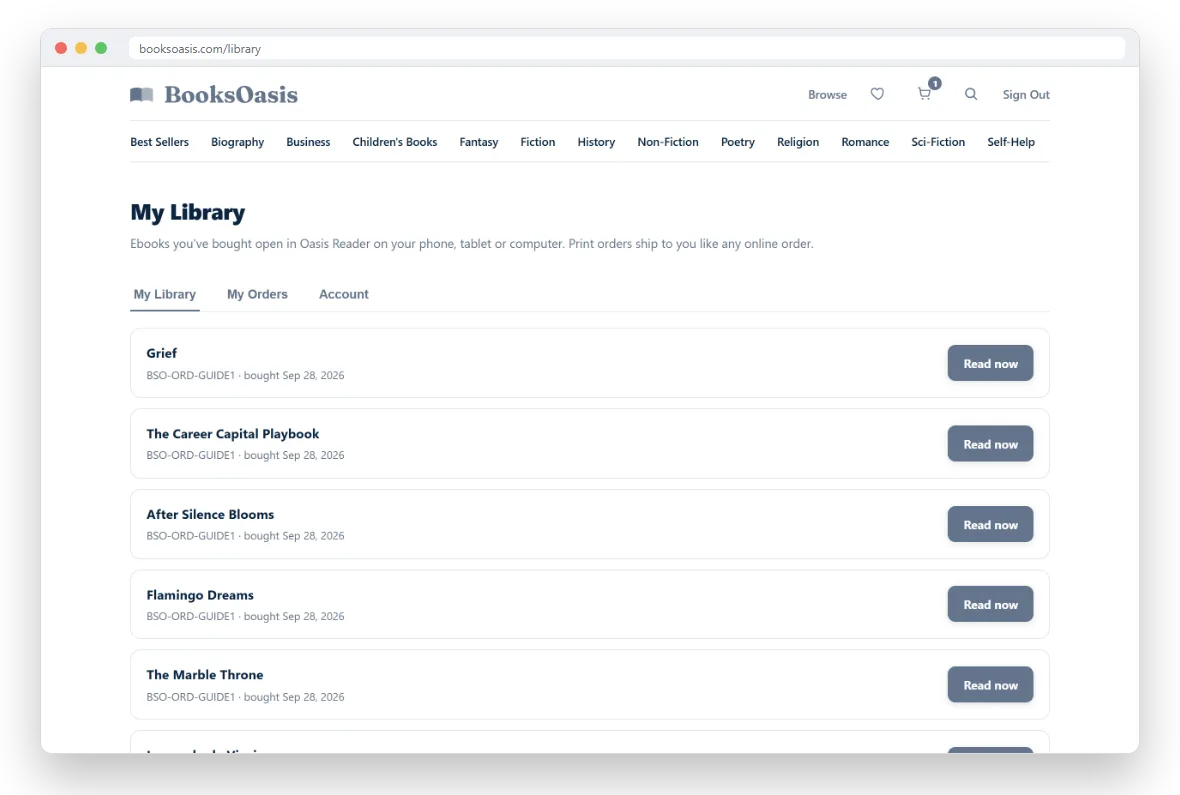
Read your ebooks
The My Library tab lists every ebook you have bought, with its order number and the date you bought it. On the right of each one you will see:
- Read now: opens the book in Oasis Reader, our reading app, and signs you in there on the way.
- Available and a date: a pre-order. It opens on its release date.
- Preparing your file: the book is yours, but its file isn't ready to open yet.
- Refunded: this ebook was refunded, so it can no longer be opened.
Ebooks on BooksOasis are read in Oasis Reader on your phone, tablet or computer rather than downloaded as files. For everything you can do inside the reader, see the Oasis Reader guide.
Check your print orders
The My Orders tab lists each paperback or hardcover you have ordered, with the format, order number, order date, number of copies and price. Each one shows its current status, such as Preparing, Printing, Shipped or Delivered, and a Track link once tracking is available.
A print pre-order shows Ships after release with the date it will go to print. The Print orders and shipping guide explains every status.
Get a receipt
Under your print orders, the Receipts list has one entry for every order, ebooks included. Select Receipt to open a printable receipt showing each book, shipping, any store credit used, the amount paid and any refunds. Use Print or save as PDF to keep a copy. The receipt opens in a new window, so allow pop-ups for booksoasis.com if nothing appears.
Manage your account
The Account tab holds your settings:
- Wallet: your store credit balance and its recent history. Refunds come back here, and the balance comes off your next order automatically.
- Emails: choose whether you get offer emails and review requests, and add your birthday if you like. See Offers, emails and birthdays.
- Profile: change the name and email address on your account.
- Password: change your password. See Your account and signing in.
- Close account: covered below.
To sign out, use Sign Out at the top of the library page.
Close your account
You can close your reader account from the bottom of the Account tab by entering your password. Please read this first:
- Closing removes your personal details and ends access to your ebooks, highlights and notes.
- Any wallet balance is lost, so spend it first.
- You can't close the account while a print order of yours hasn't shipped yet. Wait until it is on its way.
- Closing can't be undone. Order records are kept without your name, for our accounts.
Ready to pick up where you left off?
Your ebooks and orders are waiting in your library.