Reading with Oasis Reader
Every ebook you buy on BooksOasis opens in Oasis Reader, our reading app for your phone, tablet and computer. This guide shows everything it does and how to get the most from it.
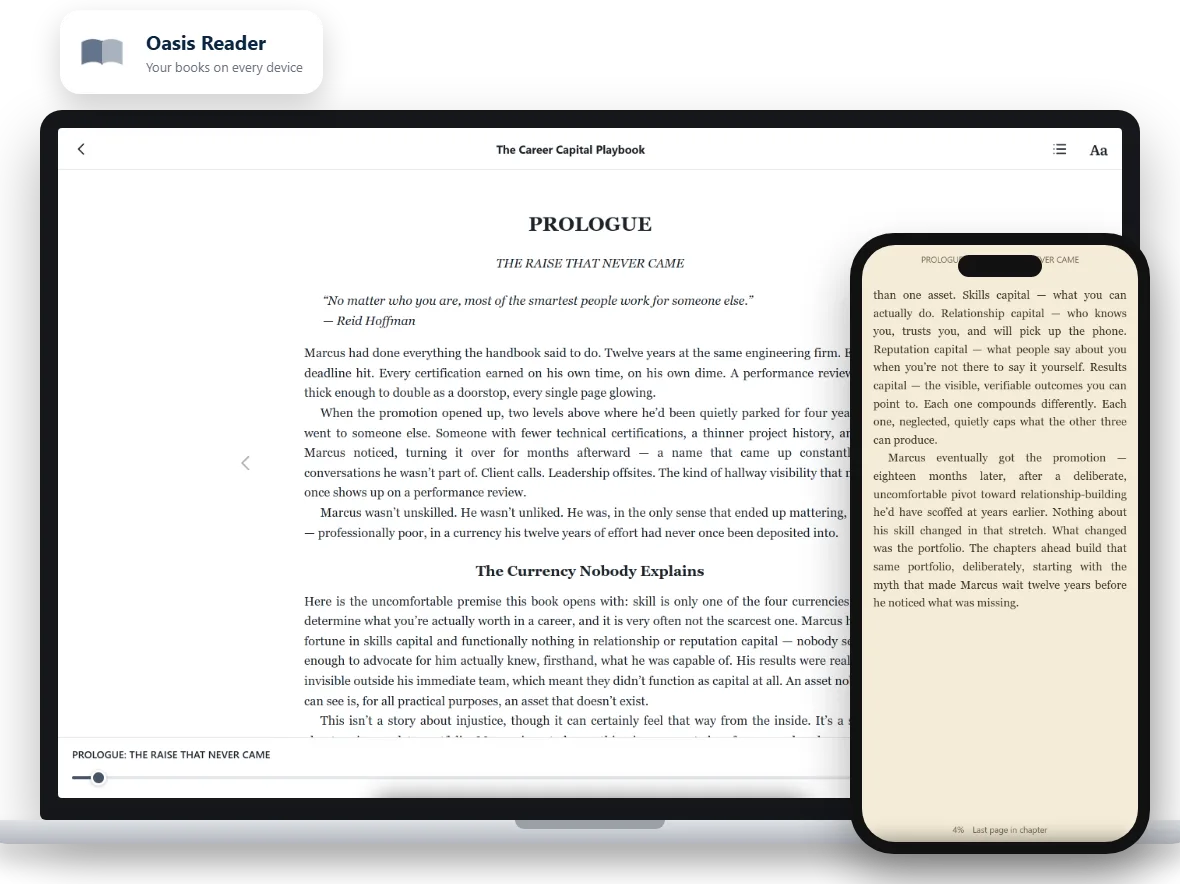
What Oasis Reader is
Oasis Reader runs in your web browser at reader.booksoasis.com, so there is nothing to find in an app store. You sign in with the same account you use on booksoasis.com, and every ebook you have bought is already there.
Your books stay inside Oasis Reader. They aren't downloaded as files, which keeps them protected and means you can open them on any device you sign in to.
Open a book
There are two ways in:
- From My Library on booksoasis.com, select Read now next to any ebook.
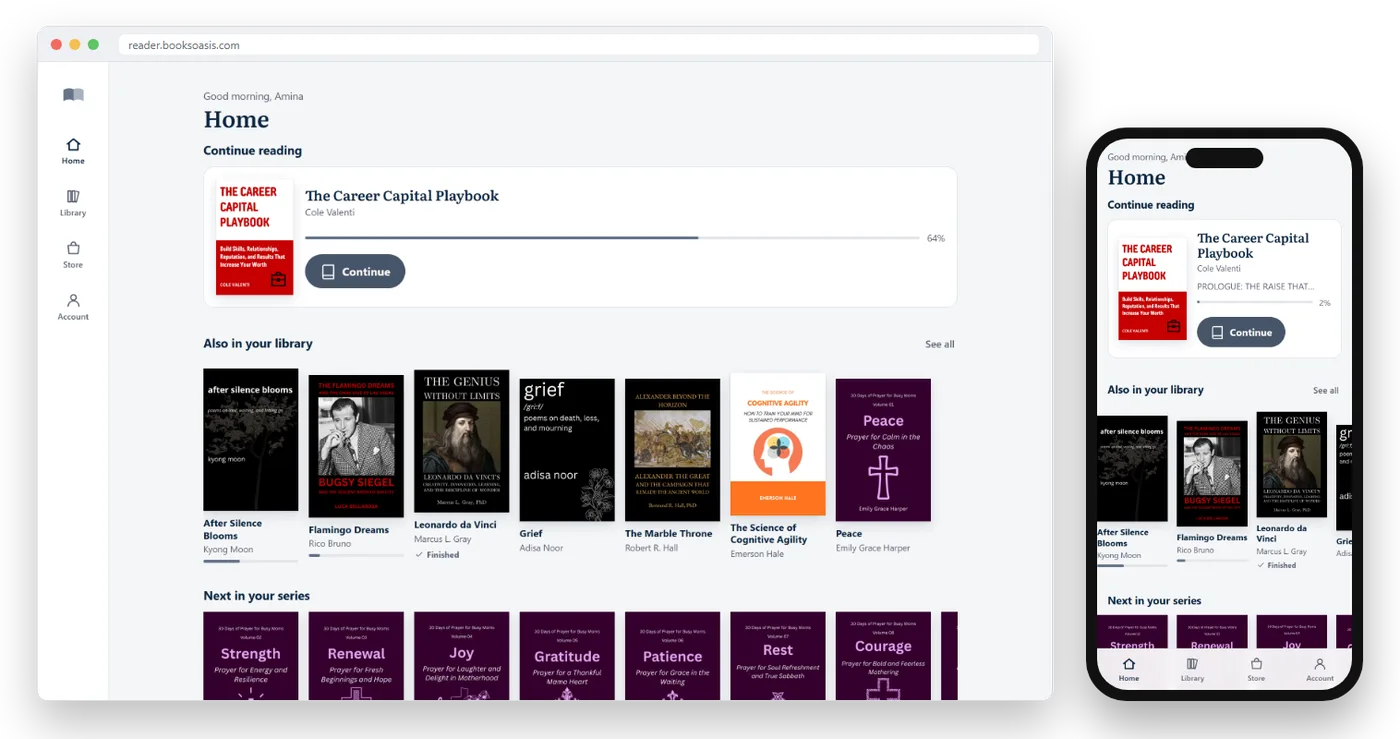
- Go straight to Oasis Reader. Home shows the books you've read most recently as covers, with a thin bar along the bottom of each cover for your progress and a tick on books you've finished, followed by picks from the store. Library lists every ebook you own, with a search box at the top. Tap a cover to open the book; press and hold it for the book's details.
Turn pages
- Phone and tablet: tap the right side of the page to go forward and the left side to go back, or swipe.
- Computer: click the arrows beside the page, or use the ← and → keys.
- Tap or click the middle of the page to show or hide the menus.
- The bar at the bottom shows how far through the book you are and how many pages are left in the chapter. Drag the slider to jump to any point.
Make it comfortable
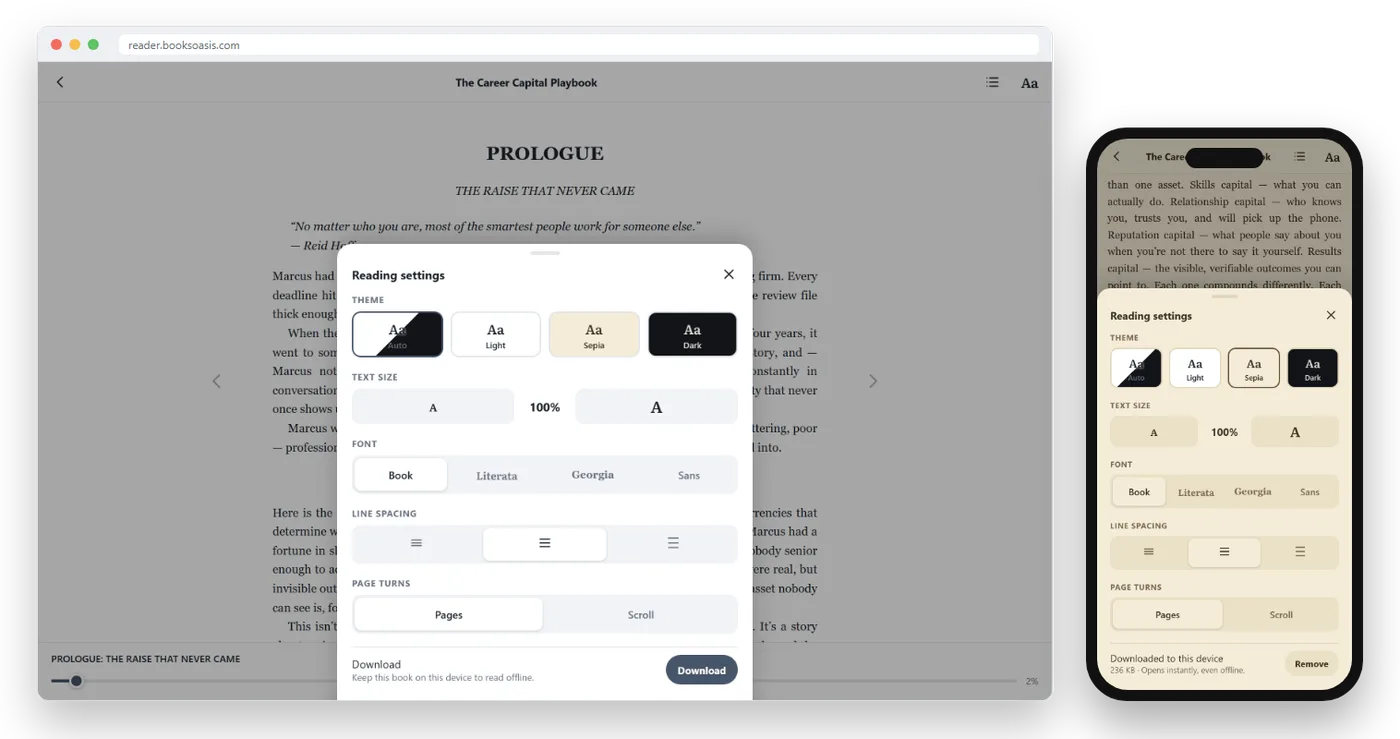
Select Aa at the top of the page to open Reading settings. Changes apply straight away.
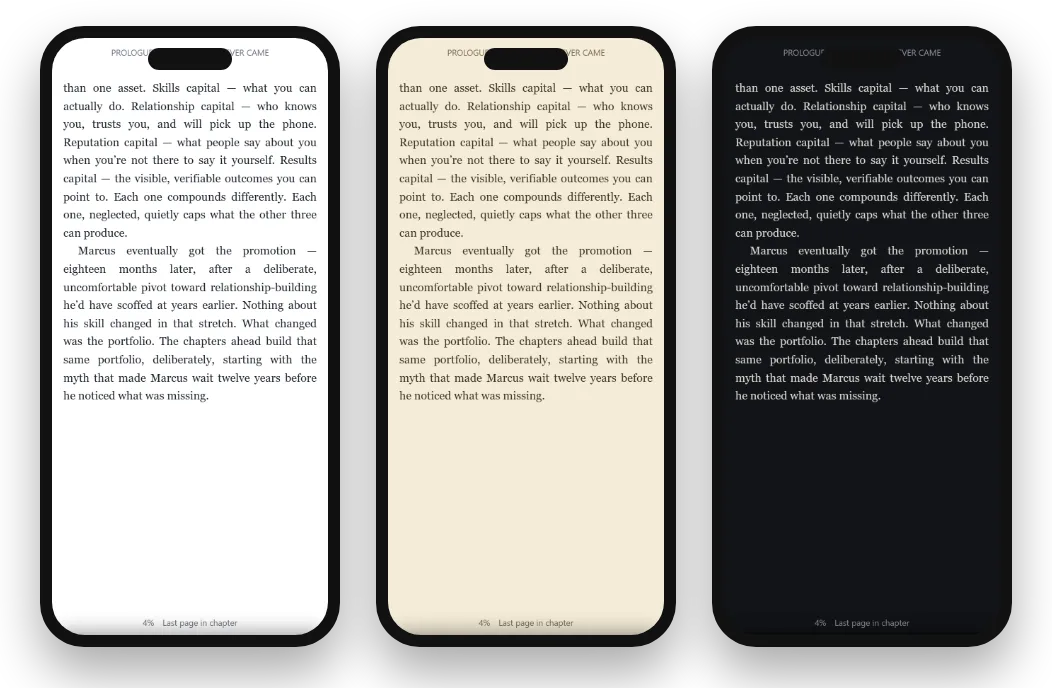
- Theme: Light, Sepia or Dark. Auto follows your device's light or dark setting.
- Text size: make the text smaller or larger. On a touch screen you can also pinch with two fingers inside the book; the text re-flows onto the following pages, so nothing is cut off.
- Font: keep the book's own typeface (Book), or choose Literata, Georgia or a clean sans-serif.
- Line spacing: compact, comfortable or relaxed.
- Reading mode: Flip turns the book page by page, left and right. Scroll is one continuous page you scroll down until the book ends.
Contents and search
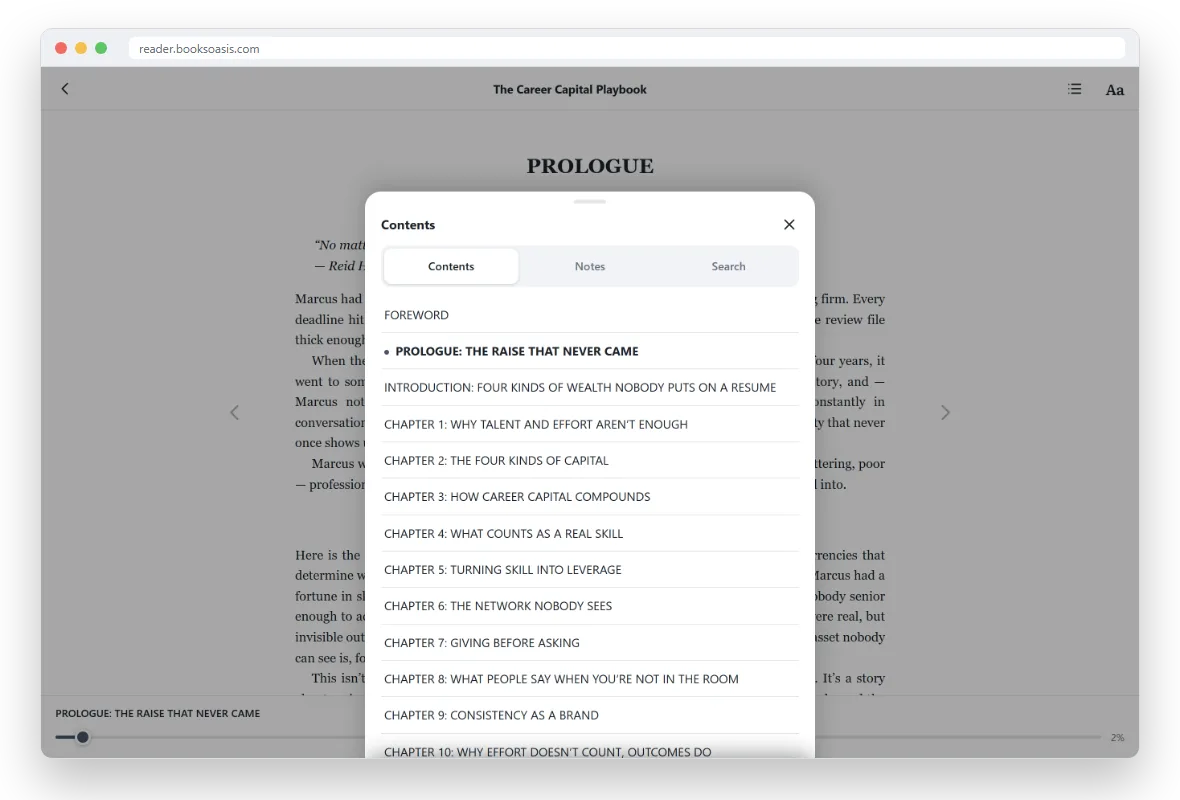
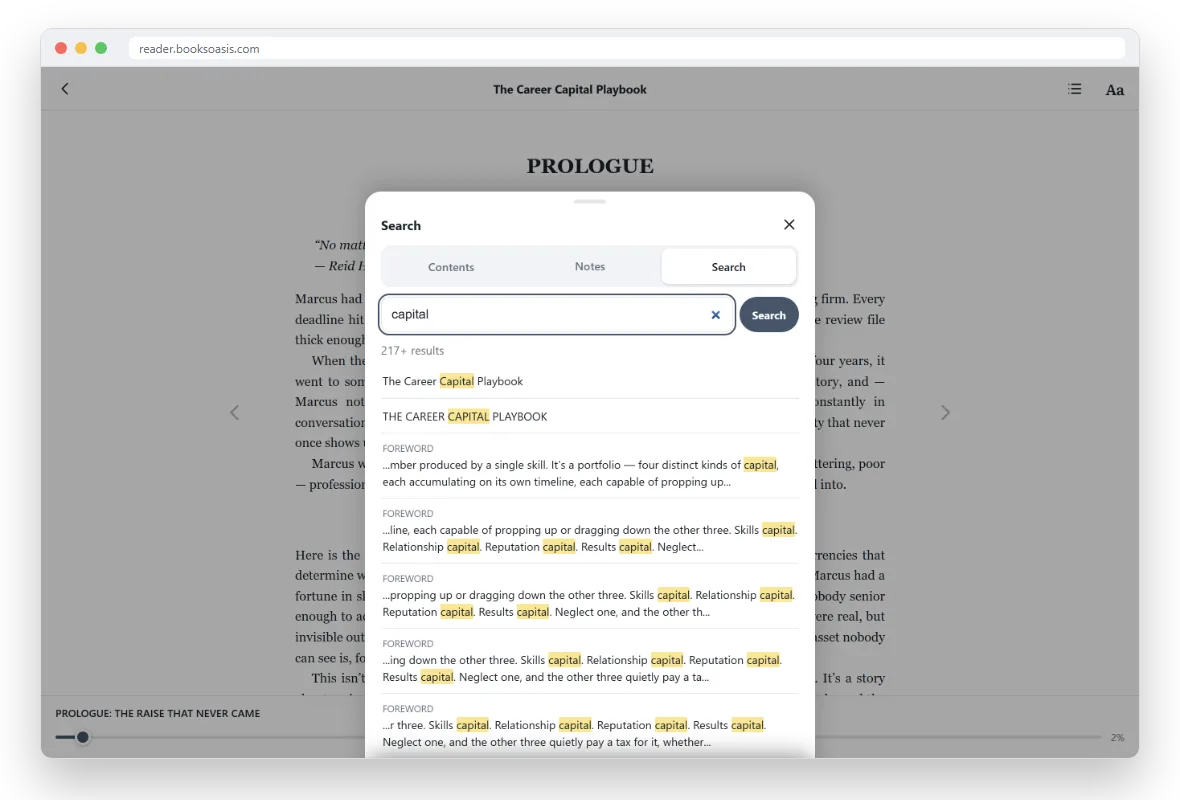
Select the list icon at the top of the page. The panel has three tabs:
- Contents lists every chapter. The one you're in is marked, and selecting any chapter takes you there.
- Notes collects your highlights and notes, in the order they appear in the book.
- Search finds every place a word or phrase appears, with a snippet of each. Select a result to jump to it.
Highlights and notes
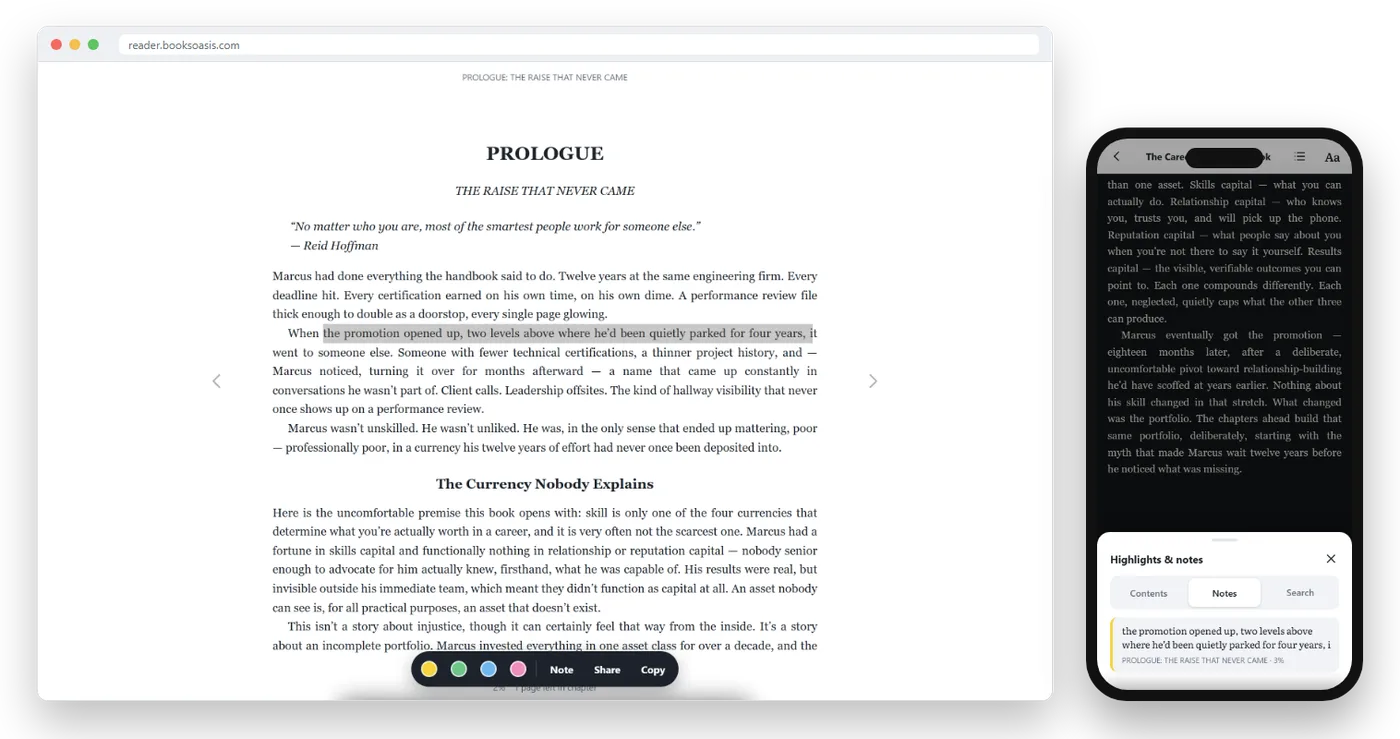
Select some text: press and hold on a phone or tablet, or drag across it with your mouse. A toolbar appears with:
- Four highlight colors: yellow, green, blue and pink.
- Note: highlight the passage and write your own thoughts about it.
- Define: look up the meaning of a word.
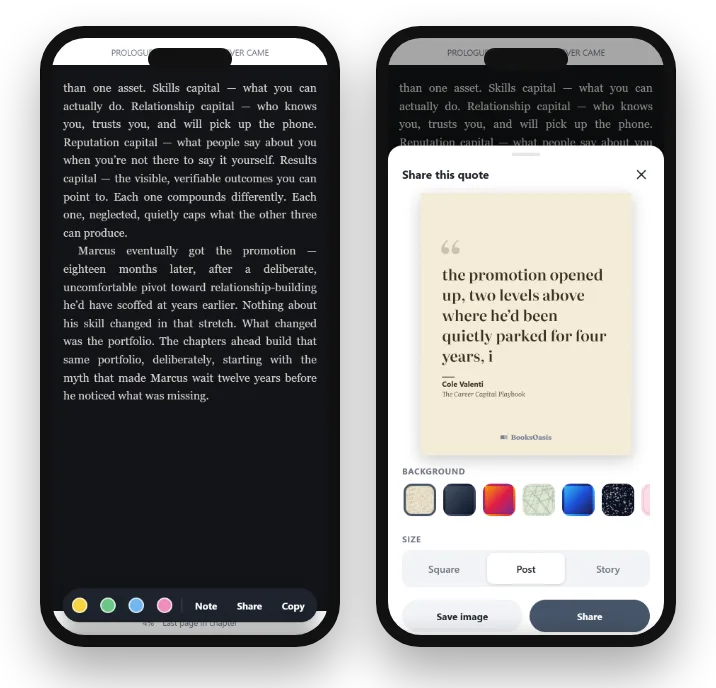
- Share: turn the passage into a quote image (see below).
- Copy: copy a short passage, up to 400 characters at a time.
Select an existing highlight to change its color, add or edit a note, share it or delete it. Every highlight and note is listed under Notes in the contents panel.
Share a quote
Select Share on any passage to make a quote image with the book's title and author. Choose a background and a size: Square, Post or Story. Then select Save image, or Share to send it straight to another app. When you save, the caption is copied too, ready to paste.
Read offline
You don't need to do anything. Every ebook you own downloads to the device automatically the first time you open Oasis Reader there with a connection, and new purchases follow as soon as they reach your library. After that, your books open instantly with no connection at all, on a plane or on the underground.
Books are kept on each device separately, so open the app once while online on every phone, tablet or computer you read on. On iPhone and iPad, a Safari tab and the Home Screen app keep separate storage, so pick one and use it for reading.
Your place follows you
Oasis Reader saves your place, your highlights and your notes to your account as you read. Open the same book on another phone, tablet or computer and you carry on from where you stopped, with all your notes there.
When you finish a book
At the end of a book you'll see a You finished it panel with a Rate this book button, which takes you to the book's reviews, and a few suggestions for what to read next.
Get the app or add it to your home screen
Oasis Reader can sit on your home screen and open full screen, like any other app:
- Android app: download the Oasis Reader app for Android, open the file and allow the install when Android asks. Books, highlights and notes stay in sync with your account.
- Windows app: get Oasis Reader in the Microsoft Store, install it, then sign in with your BooksOasis account.
- iPhone and iPad (Safari): open reader.booksoasis.com, select the Share button, then Add to Home Screen.
- Android (Chrome), without the app: open reader.booksoasis.com, open the browser menu, then choose Install app or Add to Home screen.
- Computer (Chrome or Edge), without the app: look for the install icon in the address bar, or use the browser menu.
Questions
Do I need a separate account for Oasis Reader?
No. Sign in with the account you use to buy books on booksoasis.com.
Can I download the ebook as a file?
No. Ebooks are read inside Oasis Reader only. You can still read them offline: the app keeps every book you own on your device, as described above.
Which devices does it work on?
Any phone, tablet or computer with an up-to-date web browser, such as Safari, Chrome, Edge or Firefox.
Can I read a book I ordered in print?
Oasis Reader shows the ebooks you have bought. A paperback or hardcover order doesn't include the ebook, but you can buy the ebook edition from the book's page.
Find your next ebook
It's ready to read in Oasis Reader the moment you buy it.